📋 JSON Schema & Configuration

Blade Parameters JSON Schema for UI and Batch Processing

📐 Geometry Creation Approach

The width trim system uses a consistent approach for creating cutting bodies:

Coordinate Convention

  • X axis - Profile direction (left/right across the blade)
  • Y axis - Thickness direction (into/out of blade face)
  • Z axis - Height direction (up/down, aligned with gravity)

Perpendicular Cuts (Block-based)

For simple cuts with no angle or tilt, a block is created directly at the final position:

sld blo centerX centerY centerZ sizeX sizeY sizeZ 0 0 0 i_body

'*** Rotate for compound blade orientation
if bladeAngle <> 0 then
   sld rot 1 i_body 0 0 0 0 0 1 bladeAngle
end if

Angled/Tilted Cuts (Kurve-based)

For cuts with draft angles or tilt, the cutter is built in XY plane first, then rotated:

  1. Build 2D profile in XY plane - X=profile direction, Y=height
  2. Convert kurve to sheet - Creates flat sheet in XY
  3. Rotate 90° around X - Moves to XZ plane (X=profile, Z=height)
  4. Rotate by blade angle around Z - For compound blade orientations
  5. Thicken in Y direction - Creates solid covering blade thickness

This approach is more reliable than trying to construct angled geometry directly.

Key Principle: Always create geometry in a simple reference plane (XY), then rotate to final orientation. This avoids compounding rotation errors.
📄 Blade Parameters JSON Schema

The blade generation system uses JSON files to define blade parameters. This allows both interactive UI and headless/batch modes to use identical parameter definitions.

Architecture: User Interface → writes JSON → fxReadBladeJSON parses it → blade generated.
This single code path ensures consistency between interactive and batch processing.

Schema Location

C:\Program Files\SolidCut_CAD_2025\support\fixture_dev_2026Q1\schemas\blade_params.schema.json

Key Sections

Section Purpose Required
blade Core geometry: position, normal, thickness, length ✓ Yes
profile Profile generation: offset, gravity direction ✓ Yes
trimming Open sides, extensions, gravity trim No
edgeModifications Taper, blend, grippers, notches No
modularAssembly Lego block system parameters No
foulingCheck Interference checking No
dangerZone Sharp edge safety marking and blending No
output Layer, color, DXF options No
processingMode headless, showProgress, debugLevel No
metadata Job tracking (jobId, partFile) No

📝 Minimal Example

Only the required fields - uses defaults for everything else:

{
  "version": "1.0",
  "blade": {
    "position": { "x": 100.0, "y": 0.0, "z": 0.0 },
    "normal": { "x": 1.0, "y": 0.0, "z": 0.0 },
    "thickness": 6.0
  },
  "profile": {
    "offset": 2.0,
    "gravityDirection": "AUTO"
  }
}

📝 Full Example (with Trimming)

Open-top blade with gravity and width trim - typical fixture configuration:

{
  "version": "1.0",
  "metadata": {
    "jobId": "BLD-2026-0001",
    "partFile": "bracket_assembly.x_t",
    "createdAt": "2026-01-11T17:30:00Z"
  },
  "blade": {
    "position": { "x": 150.0, "y": 0.0, "z": 50.0 },
    "normal": { "x": 1.0, "y": 0.0, "z": 0.0 },
    "thickness": 6.0,
    "length": "auto",
    "overshoot": 25.0
  },
  "profile": {
    "offset": 2.0,
    "gravityDirection": "BOTTOM",
    "gravityThreshold": 0.5
  },
  "trimming": {
    "openSide": "top",
    "openSideMargin": 15.0,
    "sideExtension": {
      "left": 10.0,
      "right": 10.0
    },
    "gravityTrim": {
      "enabled": true,
      "side": "both",
      "leftDist": 20.0,
      "rightDist": 30.0
    },
    "widthTrim": {
      "enabled": false,
      "leftThickness": 5.0,
      "rightThickness": 5.0,
      "leftAngle": 0.0,
      "rightAngle": 0.0,
      "leftTilt": 0.0,
      "rightTilt": 0.0,
      "leftOffset": 0.0,
      "rightOffset": 0.0,
      "leftTopAngle": 0.0,
      "rightTopAngle": 0.0,
      "anglePivot": "corner"
    },
    "safetyBlend": {
      "enabled": false,
      "radius": 2.0,
      "minFaceFactor": 2.0,
      "externalOnly": true,
      "excludePocket": true
    }
  },
  "edgeModifications": {
    "blend": {
      "enabled": true,
      "radius": 1.0
    }
  },
  "processingMode": {
    "showProgress": true,
    "progressMinDelta": 10,
    "debugLevel": 0
  }
}

🔧 Trimming Parameters

These control how the blade is trimmed for open-sided fixtures and material reduction:

gravityDirection (in profile section)

Direction that gravity acts - determines which faces are "up" vs "down" for trimming operations.

  • "AUTO" - Derive from blade normal (default). For blade normal in XY plane, gravity is -Z.
  • "BOTTOM" - Gravity toward -Z (most common)
  • "TOP" - Gravity toward +Z
  • "LEFT" - Gravity toward -X
  • "RIGHT" - Gravity toward +X
  • "FRONT" - Gravity toward -Y
  • "BACK" - Gravity toward +Y
  • "NONE" - No gravity direction (disables gravity-based operations)

AUTO mode: Analyzes the blade normal vector. Gravity is assumed to act on the axis where the blade normal has the smallest component. This works correctly for standard vertical blades and compound angle blades.

openSide

Which side of the blade is cut away (open). Relative to gravity direction.

  • "none" - Full blade, no open side (default)
  • "top" - Cut away top, blade supports from below
  • "bottom" - Cut away bottom (rare, trim fixtures)

sideExtension

Extend blade beyond part profile on left/right sides (looking along blade normal).

"sideExtension": {
  "left": 10.0,   // Extend left side 10mm
  "right": 15.0   // Extend right side 15mm
}

gravityTrim

Trim blade walls along gravity direction. Keeps material near contact surface, removes material away from contact. Distances are measured from the contact point along the wall - how much to keep, not how much to remove.

"gravityTrim": {
  "enabled": true,
  "side": "both",        // "left", "right", or "both"
  "leftDist": 20.0,      // Keep 20mm on left wall from contact
  "rightDist": 30.0      // Keep 30mm on right wall from contact
}

Use case: When a part rests in a pocket, the wall portions near the floor support the part. The upper portions of the walls can be trimmed away to reduce weight and material cost.

Asymmetric trim: Left and right walls can have different distances - useful when one side of the part is heavier or when access is needed on one side.

widthTrim

Trim blade walls from the outside edge inward toward the pocket. Used for extraction clearance (remove walls entirely) or wall thinning (keep specified thickness).

"widthTrim": {
  "enabled": true,
  "side": "both",          // "none", "left", "right", or "both"
  "leftThickness": 0.0,    // Wall thickness interpretation:
  "rightThickness": 5.0,   //   0 = remove wall to pocket edge
                            //   >0 = keep this much wall from pocket edge
                            //   <0 = cut past pocket edge (aggressive)
  "leftAngle": 15.0,       // Draft angle for extraction (degrees)
  "rightAngle": 15.0,      // +ve = opens outward at top (V-exit)
  "leftTilt": 0.0,         // Tilt perpendicular to outer face
  "rightTilt": 0.0,
  "leftOffset": 10.0,      // Vertical offset above pivot reference (mm)
  "rightOffset": 10.0,
  "leftInset": 0.0,        // Horizontal inset from pocket edge (mm)
  "rightInset": 0.0,       // Only used when thickness <= 0
  "anglePivot": "corner"   // "corner", "contact", or "bottom"
}

Thickness values:

  • 0 - Remove wall entirely, cut to pocket edge (safe, won't affect center geometry)
  • >0 - Keep this much wall from pocket edge (e.g., 5 = leaves 5mm wall stub)
  • <0 - Aggressive removal, cut past pocket edge toward center (e.g., -10 = cuts 10mm into base area)

Angle pivot modes:

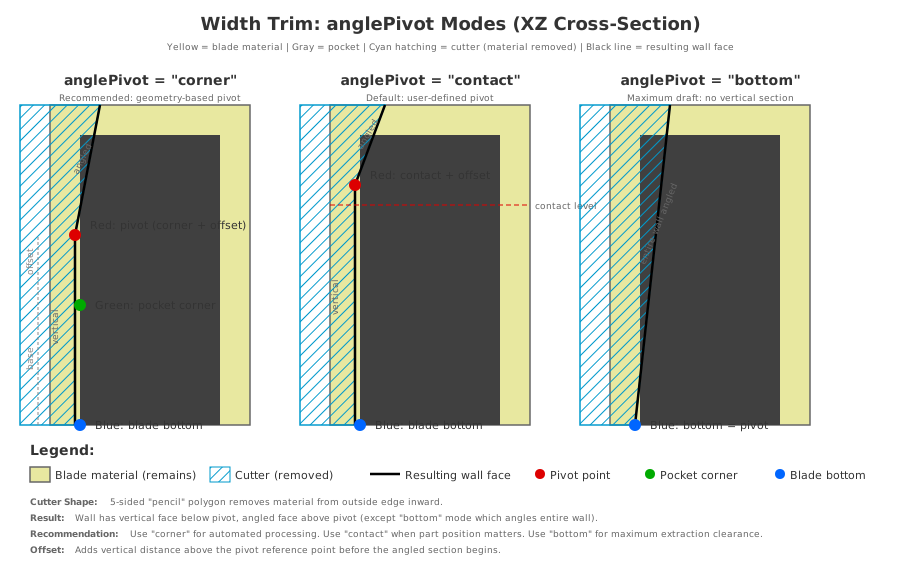
Angle Pivot Modes Diagram

The anglePivot parameter controls where the vertical-to-angled transition occurs on the cut face. The cutter is a 5-sided "pencil" shape that creates a vertical wall section below the pivot and an angled wall section above it.

  • "corner" (recommended for most cases) - Pivot point is calculated from the geometric pocket corner (where the inner wall meets the pocket floor) plus the offset value. This mode uses actual blade geometry rather than user-defined values, making it more reliable for automated processing.
    Use case: Standard fixture blades where you want a stable vertical base and angled extraction above the pocket floor.
  • "contact" (default) - Pivot point is at the user-defined contact level (w_FX_CONTACT_LEVEL) plus the offset value. The contact level represents where the part rests in the blade pocket.
    Use case: When you need precise control over where the angle starts relative to the part position.
  • "bottom" - Pivot point is at the blade bottom. The entire wall is angled from base to top with no vertical section.
    Use case: Maximum draft angle for easy extraction, or when wall stability is not a concern.

Angled cuts: The angle parameters create draft angles for part extraction. Positive angles open outward at the top, creating a V-shape exit path. The angle pivots from the point specified by anglePivot plus any offset.

Horizontal inset: The inset parameter only applies when removing walls entirely (thickness ≤ 0). It creates a horizontal shelf/ledge at the bottom of the angled cut. For wall thinning (thickness > 0), inset is ignored.

⚠️ Danger Zone Marking

Automatic safety marking for sharp edges on thin blade faces. Identifies dangerous edges and marks them with red strips for operator awareness.

Configuration

"dangerZone": {
  "enabled": false,        // Master enable for danger zone marking
  "distance": 5,           // Width of red strip from edge (mm) - also blend radius
  "angleThreshold": 90,    // Max angle between faces to mark (degrees)
  "blend": false           // Apply blend to inner edges between red faces
}

Parameters

ParameterTypeDefaultDescription
enabled boolean false Master enable for danger zone processing
distance number 5 Width of danger strip from edge (mm). Also used as blend radius if blending enabled
angleThreshold number 90 Maximum angle between adjacent face normals to consider edge "sharp" (degrees)
blend boolean false Apply constant blend to edges where two red (danger) faces meet

How It Works

  1. Thin Face Detection - Only processes edges on faces where shortest edge ≤ material thickness
  2. Sharp Edge Identification - Finds edges where BOTH adjacent faces are thin AND meet at acute angle
  3. Danger Strip Creation - Imprints red strips on both faces adjacent to each danger edge
  4. Optional Blending - If enabled, applies constant blend to edges between two red faces
Key Point: Large flat faces (like blade sides) are ignored even if they have sharp corners with other faces. Only edges where BOTH adjacent faces are "thin" (shortest edge ≤ material thickness) are marked as dangerous.

Global Variables

Global VariableJSON Path
i_FX_JSON_DANGER_ZONE_ENABLEDdangerZone.enabled
w_FX_JSON_DANGER_ZONE_DISTdangerZone.distance
w_FX_JSON_DANGER_ZONE_ANGLEdangerZone.angleThreshold
i_FX_JSON_DANGER_ZONE_BLENDdangerZone.blend
i_FX_DANGER_ZONE_COUNT(output) Number of zones marked

Direct Macro Call

'*** Set globals and call directly:
i_FX_JSON_DANGER_ZONE_ENABLED = 1
w_FX_JSON_DANGER_ZONE_DIST = 5
w_FX_JSON_DANGER_ZONE_ANGLE = 90
i_FX_JSON_DANGER_ZONE_BLEND = 1
call fxDangerZoneMarking i_bladeBody

'*** Check results:
write $_FIXTURE_PERSISTENT_MESSAGE 'Danger zones marked: ' i_FX_DANGER_ZONE_COUNT
call fxPrintStatus

⚡ Processing Mode & Performance

Control overhead and visual feedback based on context:

Setting Effect Use Case
headless: true No GUI, no progress, maximum speed Batch processing, API calls
showProgress: false Skip NucleoSphere (~1s vs 2-4s per blade) Quick jobs, batch mode
progressMinDelta: 25 Update every 25% (4 updates, ~1s overhead) Fast interactive feedback
progressMinDelta: 10 Update every 10% (10 updates, ~2.5s overhead) Normal interactive use (default)
debugLevel: 2 Verbose debug output to message window Troubleshooting
Override from Macro Code: By default, the JSON debugLevel value overwrites any value set in your calling macro. To prevent this (e.g., for debugging), set i_FX_DEBUG_LEVEL_OVERRIDE = 1 before calling fxReadBladeJSON. This tells the parser to respect your macro's debug level instead of the JSON value.
'*** Force debug level 2 even if JSON says 0
i_FX_DEBUG_LEVEL = 2
i_FX_DEBUG_LEVEL_OVERRIDE = 1
call fxReadBladeJSON $_jsonPath
Performance Tip: For batch processing of multiple parts, set headless: true to skip all visual overhead. Processing time drops from ~4 seconds to ~1 second per blade.

🔌 Reading JSON in PEPS

Use fxReadBladeJSON to parse a JSON file and populate global variables:

'*** Load blade parameters from JSON
call fxReadBladeJSON 'C:\temp\blade_001.json'
if i_return = i_ERROR then
   write $_FIXTURE_PERSISTENT_MESSAGE 'Failed: ' $_return
   call fxPrintStatus
   termac
end if

'*** Now use the populated globals
call fxCreateBladeFromIntersect i_partBody \
     w_FX_JSON_CENTER_X w_FX_JSON_CENTER_Y w_FX_JSON_CENTER_Z \
     w_FX_JSON_NORMAL_X w_FX_JSON_NORMAL_Y w_FX_JSON_NORMAL_Z \
     w_FX_JSON_THICKNESS w_FX_JSON_STOCK_MARGIN

Populated Globals

Global Variable JSON Path
w_FX_JSON_CENTER_X/Y/Zblade.position.x/y/z
w_FX_JSON_NORMAL_X/Y/Zblade.normal.x/y/z
w_FX_JSON_THICKNESSblade.thickness
w_FX_JSON_OFFSETprofile.offset
$_FX_JSON_GRAVITY_DIRprofile.gravityDirection
$_FX_JSON_OPEN_SIDEtrimming.openSide
Gravity Trim
i_FX_JSON_GRAV_TRIMtrimming.gravityTrim.enabled
w_FX_JSON_GRAV_TRIM_LEFTtrimming.gravityTrim.leftDist
w_FX_JSON_GRAV_TRIM_RIGHTtrimming.gravityTrim.rightDist
$_FX_JSON_GRAV_TRIM_SIDEtrimming.gravityTrim.side
Width Trim
i_FX_JSON_WIDTH_TRIMtrimming.widthTrim.enabled
w_FX_JSON_WIDTH_TRIM_LEFTtrimming.widthTrim.leftThickness
w_FX_JSON_WIDTH_TRIM_RIGHTtrimming.widthTrim.rightThickness
w_FX_JSON_WIDTH_TRIM_LEFT_ANGLEtrimming.widthTrim.leftAngle
w_FX_JSON_WIDTH_TRIM_RIGHT_ANGLEtrimming.widthTrim.rightAngle
w_FX_JSON_WIDTH_TRIM_LEFT_TILTtrimming.widthTrim.leftTilt
w_FX_JSON_WIDTH_TRIM_RIGHT_TILTtrimming.widthTrim.rightTilt
$_FX_JSON_WIDTH_TRIM_SIDEtrimming.widthTrim.side
w_FX_JSON_WIDTH_TRIM_LEFT_OFFSETtrimming.widthTrim.leftOffset
w_FX_JSON_WIDTH_TRIM_RIGHT_OFFSETtrimming.widthTrim.rightOffset
w_FX_JSON_WIDTH_TRIM_LEFT_INSETtrimming.widthTrim.leftInset
w_FX_JSON_WIDTH_TRIM_RIGHT_INSETtrimming.widthTrim.rightInset
$_FX_JSON_WIDTH_TRIM_ANGLE_PIVOTtrimming.widthTrim.anglePivot
Gravity Vector (computed from gravityDirection)
w_FX_GRAVITY_X/Y/ZUnit gravity vector (computed)
i_FX_GRAVITY_AXISGravity axis: 1=X, 2=Y, 3=Z (computed)
i_FX_GRAVITY_SIGNDirection: -1 or +1 (computed)
w_FX_CONTACT_LEVELContact level on gravity axis (set by caller)
Processing
i_FX_SHOW_PROGRESSprocessingMode.showProgress
w_FX_PROGRESS_MIN_DELTAprocessingMode.progressMinDelta
i_FX_DEBUG_LEVELprocessingMode.debugLevel (unless i_FX_DEBUG_LEVEL_OVERRIDE=1)
Danger Zone
i_FX_JSON_DANGER_ZONE_ENABLEDdangerZone.enabled
w_FX_JSON_DANGER_ZONE_DISTdangerZone.distance
w_FX_JSON_DANGER_ZONE_ANGLEdangerZone.angleThreshold
i_FX_JSON_DANGER_ZONE_BLENDdangerZone.blend
i_FX_DANGER_ZONE_COUNT(output) Number of danger zones marked

🔧 Edge Features Configuration

Post-creation features applied to specific blade face zones. Supports grippers, plungers, labels, and other manufacturing features based on face topology.

See Full Documentation: For complete details on the edge feature detection system, including the 14 detection modes, topology walk algorithm, color coding reference, and testing procedures, see the dedicated 🔧 Edge Features Documentation.

Quick Reference: JSON Configuration

"edgeFeatures": {
  "grippers": {
    "enabled": true,
    "zones": ["left-inside", "bottom-inside", "right-inside"],
    "radius": 3.0,
    "interval": 25.0,
    "clearance": 0.5,
    "depthOffset": 2.0
  },
  "plungers": {
    "enabled": true,
    "zones": ["left-inside"],
    "width": 12.0,
    "depth": 8.0,
    "spacing": 50.0,
    "fromTop": 15.0
  },
  "labels": {
    "enabled": true,
    "zones": ["top-left"],
    "text": "BLADE-001",
    "height": 5.0,
    "depth": 0.3
  }
}

Available Zones (14 Total)

Zones are grouped by category:

  • Inside (4): left-inside, right-inside, bottom-inside, all-inside
  • Outside (7): left-outside, right-outside, bottom-outside, top-left, top-right, all-outside, all-outside-except-base
  • Combined (3): all-no-topZFaces, all-everything, all-everything-except-base

See full zone descriptions →

Open Profile Handling: For L-shaped or open-sided blade profiles, the system automatically detects which inside walls exist. Missing zones are handled gracefully.

🔴 Reference Face Markers

Reference markers are circular imprints placed on blade faces to identify reference surfaces for fixture alignment. The marked face becomes the datum for positioning operations.

Configuration

"referenceMarker": {
  "enabled": true,           // Enable reference marker placement
  "diameter": "3mm"          // Marker diameter with units
}

Global vs Per-Blade Settings

Global (in fixtureConfig): Applies to all blades unless overridden

"fixtureConfig": {
  "referenceMarker": {
    "enabled": true,
    "diameter": "3mm",
    "color": { "r": 255, "g": 0, "b": 0 }
  }
}

Per-Blade Override (in blades array):

"blades": [
  {
    "id": 1,
    "referenceMarker": {
      "diameter": "5mm"    // Override for this blade only
    }
  },
  {
    "id": 2               // Uses global 3mm default
  }
]

Face Naming (Internationalized)

Both the parent face and the marker face are named for identification:

FaceNameDescription
Parent face ^24 9999 'Reference Face' The planar face selected for marking (datum surface)
Marker face ^24 9999 'Reference Face Marker' The red circular imprint face created on the parent

Note: The ^24 9999 prefix indicates internationalization-ready strings.

Resolution Order

  1. If blade has referenceMarker.diameter → use blade value
  2. Else if global fixtureConfig.referenceMarker.diameter exists → use global
  3. Else → use hardcoded default: 3mm

Global Variables

Global VariableJSON PathDescription
w_FX_JSON_REFMARKER_DIAMETERfixtureConfig.referenceMarker.diameterGlobal diameter (0 = use default)
i_FX_JSON_REFMARKER_ENABLEDfixtureConfig.referenceMarker.enabledGlobal enable (1=on, 0=off)
w_FX_BLADE_REFMARKER_DIAMETERblades[].referenceMarker.diameterPer-blade override (0 = use global)
i_FX_BLADE_REFMARKER_FACE_IDblades[].referenceMarker.faceIdSpecific face (0 = auto-detect)

Macro Usage

'*** Interactive mode - pick a face
call fxPlaceRefImprint

'*** Programmatic mode - specify face ID
call fxPlaceRefImprint 512

'*** With per-blade override
w_FX_BLADE_REFMARKER_DIAMETER = 5.0    '*** 5mm for this blade
call fxPlaceRefImprint i_faceID
w_FX_BLADE_REFMARKER_DIAMETER = 0      '*** Reset for next blade
Files:
fxPlaceRefImprint.ovmmodeling\blade\
fxRefMarker.varmodeling\

📁 File Locations

File Location Purpose
blade_params.schema.json schemas\ JSON Schema definition
blade_params_example.json schemas\ Full example with trimming
blade_params_minimal.json schemas\ Minimal example (required fields only)
fxReadBladeJSON.ovm modeling\blade\ JSON parser macro
fxParseEdgeFeaturesJSON.ovm modeling\blade\ Edge features JSON parser
fxPlaceRefImprint.ovm modeling\blade\ Reference face marker placement macro
fxRefMarker.var modeling\ Reference marker global variables